What you need
- Cursor on your computer.
- An email address. You create your Orisma account while you connect; you pay nothing until you submit the application.
Connect Cursor step by step
1. Install Orisma in Cursor. Click Cursor under "Form your company in your AI" at the bottom of any page, or open Cursor Settings, then MCP, then Add new MCP server, and add the address https://app.orisma.co/mcp. Cursor shows the server and asks you to confirm the install.
2. Sign in to Orisma and allow access. Cursor opens Orisma in your browser. Enter your email, open the sign-in link we send, then choose All my companies and Read and write and click Allow.
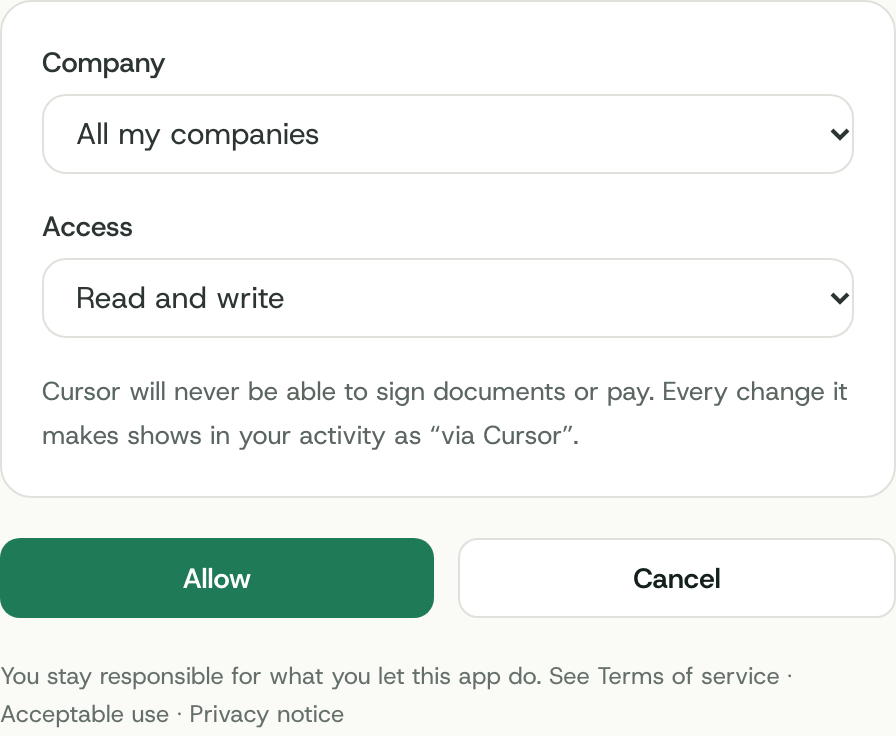
3. Ask in the agent chat. Open the agent chat and write: "Help me form a Cyprus Ltd with Orisma." The Orisma server turns green in Settings, MCP once it is connected.
Prefer a key? In Connect your AI in your dashboard you can create one and copy a ready-made mcp.json entry instead of signing in.
Form the company in the chat
The Cursor agent works through the same guided application as the other assistants: name options, activity, shareholders, directors, secretary, registered office, share capital and package, with the reason for each question. When nothing is missing it gives you a review link. You review the application, pay and sign in the app. The Standard package is EUR 1,390 excl. VAT, and the formation then takes about 15 to 20 working days.
Questions
Can Cursor pay or sign for me?
No. It gets a link for each signature or payment, and you complete it yourself in the app.
Does it work in other coding tools?
Yes. Any tool that supports remote MCP servers can use https://app.orisma.co/mcp, for example Claude Code or VS Code. Your dashboard shows the setup for each.
More on keys and permissions: Use your own AI. Other assistants: ChatGPT, Claude, Grok, all options.